



Bluetooth Mode
Pair through Bluetooth with phones, tablets, gaming consoles, Apple computers, PCs, and Android devices. Best for calls, meetings, movies, music, and everyday audio.
Need the complete setup, controls, charging, and troubleshooting guide? View or download the full Atlas Wireless Speaker System PDF manual.
Button controls and daily operation for your Atlas Wireless Speaker System.
| Button | Operation |
|---|---|
|
Power onHold for 1.5 seconds.
Power offHold for 3 seconds.
PairingWhen powered off, hold for 5 seconds to enter pairing mode.
|
|
|
Music modeShort press to play or pause.
Music modeLong press for 2 seconds to toggle high/low volume mode.
Phone modeShort press to answer or end a call. Hold to decline an incoming call.
Phone modeTriple-click to mute or unmute the microphone.
|
|
|
Volume upShort press for volume up. Long press for next track.
|
|
|
Volume downShort press for volume down. Long press for previous track.
|
|
|
Factory resetHold Volume + and Volume - together for 5 seconds to restore factory settings.
|
Use this guide to identify the speaker controls, charging points, and indicator lights.

Pair through Bluetooth with phones, tablets, gaming consoles, Apple computers, PCs, and Android devices. Best for calls, meetings, movies, music, and everyday audio.
For gaming or latency-sensitive use, connect the included USB audio dongle to your device. The dongle uses the aptX Low Latency wireless protocol between the dongle and the Atlas Wireless Speaker. This gives you a more stable and responsive connection than standard Bluetooth.
Use Atlas Audio Router to add immersive surround sound to a Windows PC setup.
Atlas Audio Router is a fully signed, lightweight app for Windows PCs. After installation, it exposes a virtual 7.1 audio device in Windows.
With the app running and properly configured, your existing front-channel speakers play the front audio. The included USB dongle sends the rear channels to the Atlas Wireless Speaker.
This lets the Atlas Wireless Speaker act as your rear surround channels for a wider, more immersive experience in games, movies, and other multichannel audio.
Download Atlas Audio RouterQuick answers for setup, compatibility, gaming, calls, and troubleshooting.
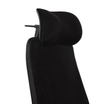
With the speaker powered off, hold the power button for 5 seconds to enter pairing mode. The indicator lights will flash red and blue. Open your device's Bluetooth settings and select Atlas Headrest from the list of available devices.
The speaker is built for gaming, calls, meetings, movies, music, and everyday audio. It pairs through Bluetooth with phones, tablets, gaming consoles, Apple computers, PCs, and Android devices.
Yes. The speaker includes standard Bluetooth capability for everyday wireless audio, and the included USB audio dongle is recommended for gaming when you want the most stable, low-latency connection.
Like any Bluetooth speaker, standard Bluetooth mode can have normal Bluetooth latency depending on the device and setup. For gaming, we recommend using the included USB dongle for the best connection between your system and the speaker.
Yes. Press the play button once to answer or end a call. Hold to decline an incoming call. Triple-click to mute or unmute the microphone.
Email us at orders@atlasheadrest.com and our team can help with installation, pairing, charging, and troubleshooting.
Our team is here to help with installation, Bluetooth pairing, charging, and product questions.